This guide is for anyone planning to buy Shadowrocket on an iPhone or iPad but unsure which search result is the right one. Open the product page in the App Store, then cross-check the developer, official icon, and app ID in the product link. Next, review the purchase details and device compatibility, and distinguish buying the app from setting up your first connection.
Start with the App Store product page
Search for Shadowrocket in the App Store. Search results are only a starting point, not the place to verify an app. Open the product page to check the app name, developer, and compatibility together. Shadowrocket is the official product name.
Don’t rely on the first result, a similar rocket icon, or keywords in an app description when deciding what to buy. Search ranking does not confirm an app’s identity, and a similar name does not mean it has the same developer. Follow these steps to verify the app before paying.
-
Open the App Store
Open App Store → Search, enter Shadowrocket, and open the matching product page rather than stopping at the search results.
-
Check the developer
Check the developer details on the product page, then scroll to Information and verify the provider name: Shadow Launch Technology Limited. Field labels vary with the App Store’s display language.
-
Compare the icon
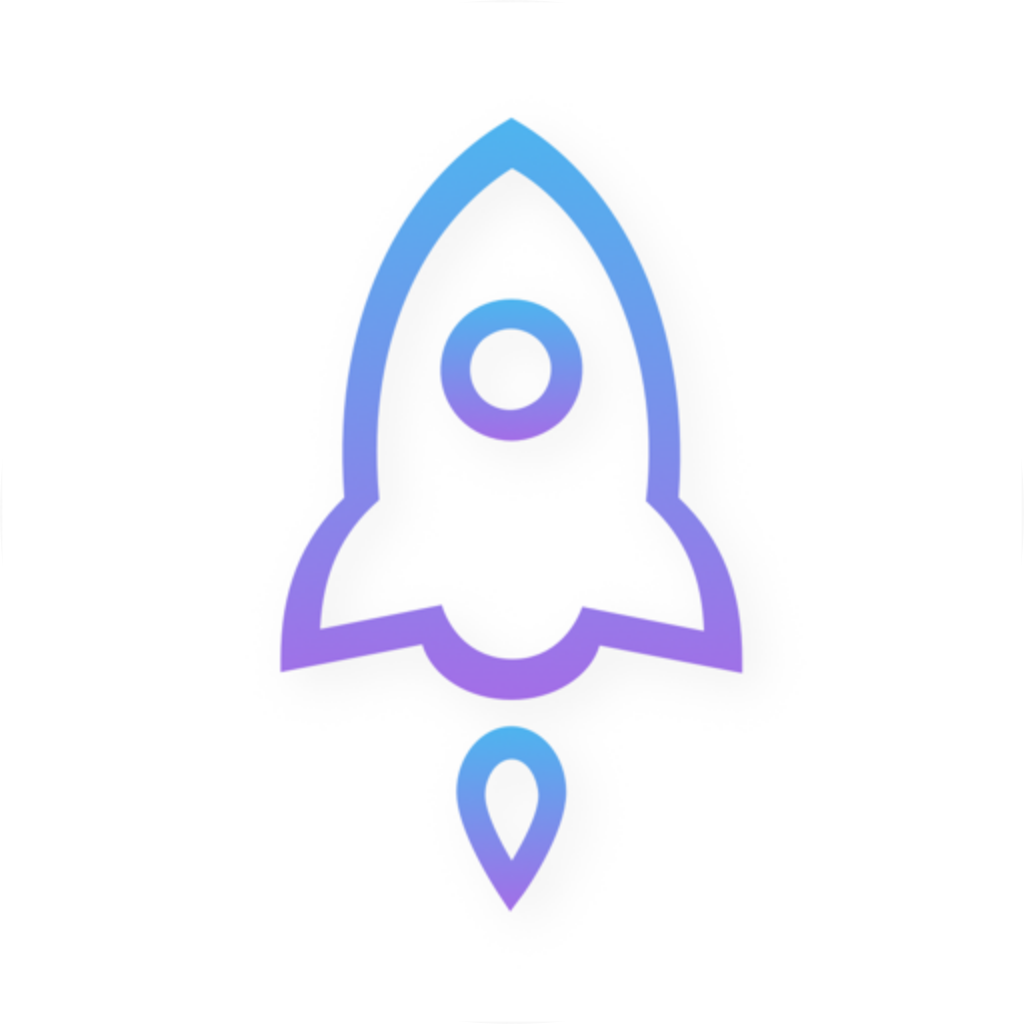
Compare the product page icon with the official icon shown below. Treat the icon as one cross-check; it does not replace verifying the developer name and app ID.
-
Check the app ID
Use the Share button on the product page to copy its link, then look for
id932747118in the path. If you open the product page in a browser, you can also check the address bar. -
Buy only after verifying
Once all three details match, check the current price and Compatibility. To open the product page from this site, use the App Store link on the App Store verification page.
How to verify the developer, official icon, and app ID
Check the developer’s full name, not just one matching word. For the app ID, look for the digits immediately after id in the product link. These checks answer two different questions—who provides the app and which product page you’re viewing. Together with the icon, they offer a clearer identification than the name alone.
The designated App Store URL for Shadowrocket is https://apps.apple.com/us/app/shadowrocket/id932747118. Here, us is the storefront region in the URL, not the app ID; shared links may also include query parameters. Verify that the domain is apps.apple.com and the product path contains 932747118, then return to the page to check the developer.
If any detail doesn’t match, stop
If the icon looks similar but the developer or app ID does not match, leave the purchase flow and reopen the designated product page from this site’s App Store verification page. A similar appearance cannot make up for missing identity details.
Check the price, device, and purchase details before buying
Check the price button on the App Store product page, then expand Compatibility to review your device. Shadowrocket is a paid Apple-platform app sold as a one-time purchase. The current price, currency, and availability depend on what your App Store storefront shows; don’t use prices from another region to estimate what you’ll pay.
Shadowrocket is primarily used on iPhone and iPad. The same App Store page also lists compatibility information for Mac, Apple TV, and Apple Vision. Check the App Store page for system requirements and whether your device is supported or the purchase is universal. Don’t assume based only on having bought it on another device.
- Check your device: Expand Compatibility to review the devices and system requirements, then confirm your device meets the listed requirements.
- Check your account: Before buying, confirm which Apple Account is currently signed in for App Store purchases. You’ll need the same account to find your purchase history later.
- Check the amount: Confirm the app name and price on the purchase confirmation screen. If anything doesn’t match, return to the product page.
- Check what’s included: Buying the app does not include a service plan. Get any subscription link you already use from your service provider; buying the app will not add those details automatically.
After installation: distinguish app verification from connection setup
After opening Shadowrocket, you’ll find Home, Config, and Settings as you use the app. But the layout or a particular toggle cannot verify the app’s App Store identity. To confirm the product, return to the App Store and check the developer and app ID. To see how network requests are handled, check the current configuration in the app.
For example, Config, Proxy, and Direct under Home → Global Routing are different routing choices, not different purchase tiers. The comparison below covers three options in Shadowrocket to help distinguish “bought the right app” from “how requests are handled now.” Changing these options does not change which account owns the App Store purchase.
Config
RecommendedSelect a policy based on the rules in the currently enabled configuration. The result depends on the rule content, matching order, and policy specified by FINAL; unmatched requests are not necessarily sent directly.
Use when: You’ve checked the current configuration and want requests handled according to its rules.
Proxy
Route requests handled by the app through a proxy instead of applying the rules in Config individually. A valid server configuration and working connection are still required; selecting this option does not guarantee service after purchase.
Use when: You have a working server and want to temporarily check whether a problem is related to rule selection.
Direct
Route requests handled by the app directly, without using the selected proxy server. A website opening in this mode does not prove that the proxy server is working.
Use when: You want to check direct connectivity on the current network.
For your first connection, check the selected server in Home, then allow the VPN configuration when prompted by the system. Use Connectivity Test alongside real requests to cross-check the result. If you’ve configured Settings → On Demand, review its conditions too, so condition-triggered connection behavior isn’t mistaken for a purchase or app identity issue.
- App identity question: Return to the App Store and check the developer, official icon, and app ID.
- Purchase question: Check the current App Store account and purchase history.
- Connection question: Check the current selection in Home, Global Routing, and Connectivity Test, then review the currently enabled Config.
What to do if you can’t find it, already bought it, or see a similar icon
The questions below follow the practical verification process. First confirm which product page you’re viewing, then address any store or connection issues. Don’t skip the key checks just because a result appears first, has a similar price, or mentions Shadowrocket in its description.
Can’t find Shadowrocket in search? What should you check next?
In App Store → Search, try searching for Shadowrocket instead. If it still doesn’t appear, open the designated product page from this site’s App Store verification page and check the availability message and Compatibility. Not finding it in search does not mean a similar result is the right app.
The icon looks the same. Is that enough?
No. Open the product page and verify Shadow Launch Technology Limited. Then use the Share button to copy the product link and check for id932747118. The icon is one of three checks; it cannot confirm the app’s identity by itself.
I bought it before. Why am I seeing a price again?
First, check the App Store account currently in use. Then open the account page and review your purchase history to confirm the listed product matches the page you’re viewing. If the purchase appears in your history but you’re still unsure, pause before paying again and check the account, storefront status, and device compatibility.
It’s already installed. How can I check the app ID again?
Open the App Store, find the product page, and use the Share button to copy its link. Read the number in the product path. Don’t use the name shown on your Home Screen or a folder name you created as the app ID; check the App Store product link.
There are no servers in Home after purchase. Did I buy the wrong app?
First, confirm the product using all three details. If they match, an empty server list is a configuration setup issue. Get your subscription link from your service provider, then import it using the tutorial. App purchase and service configuration are separate; buying the app again won’t populate the Home list.
Final checks before you pay
Complete the final checks before paying, rather than guessing from the interface after installation. If you’ve already bought the app, use the same checklist to confirm the product page you’re viewing. There’s no need to compare ratings, review counts, or search rankings.
- The product name is Shadowrocket, and the developer is Shadow Launch Technology Limited.
- The product page shows the official rocket icon outlined in blue and purple on white, and the product link contains
id932747118. - The current App Store price matches the purchase screen, and you’ve checked Compatibility.
- You understand the difference between buying the app and having a service configuration. For your first connection, continue by checking the current selection in Home.
After completing these checks, continue to purchase and first-time setup. To open the App Store, use the App Store verification page. If you’ve already bought Shadowrocket and are ready to add your own service configuration, follow the quick-start tutorial.